



With more than 2 billion active users worldwide, WhatsApp is far more than a messaging app: it is the everyday communication channel for families, businesses and work teams across Latin America and beyond. But as chats pile up, quickly finding a key contact can become a frustrating task — the conversation with your boss gets buried under twenty groups, and the family chat disappears among promotions and notifications.
The good news is that the platform offers several concrete tools — some well known, others surprisingly overlooked — to organize your inbox and reach your most important conversations in a single tap. In this guide we walk through every available option, step by step, for both Android and iPhone.
Pin chats: the first thing you should do
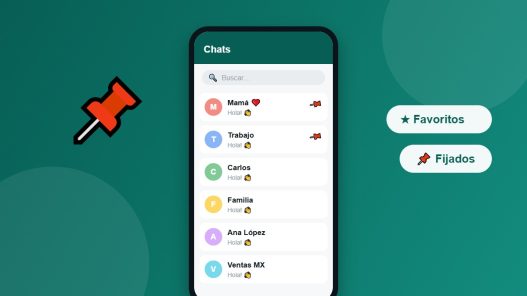
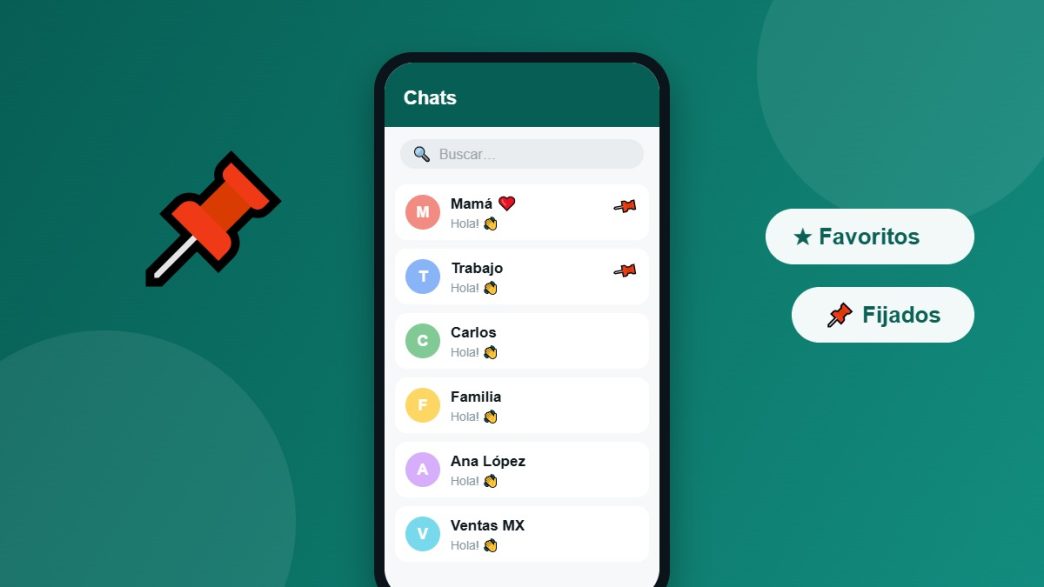
Pinning chats is the most practical feature for anyone who receives dozens of messages a day. It anchors conversations to the top of your list, no matter how many new messages arrive afterwards.
How to pin a chat on Android
- Long-press the chat you want to pin on WhatsApp’s main screen.
- A pin icon will appear in the top bar.
- Tap it and you’re done: that chat stays at the top of your list.
How to pin a chat on iPhone
- Swipe the chat from left to right.
- Tap the «Pin» option with the pin icon.
To unpin a conversation, repeat the process and select «Unpin». WhatsApp lets you keep up to three chats pinned at once, so save them for what truly matters: close family, your most active work group, or that client who can’t wait.
Pin messages inside a conversation
Besides pinning entire chats, WhatsApp lets you pin specific messages within any conversation or group. It’s perfect for addresses, shopping lists, bank details or instructions you don’t want to hunt for again.
Long-press the message, open the options menu and choose «Pin». The app will ask how long it should stay highlighted: 24 hours, 7 days or 30 days. The pinned message appears in a visible bar at the top of the chat, and any participant can tap it to jump straight to it.
Home screen shortcuts
If you want to go a step further, you can create shortcuts on your phone’s home screen that open specific WhatsApp chats. One tap takes you straight into the conversation — no opening the app, no searching for the contact.
On Android, long-press the chat, tap the three-dot icon in the top right corner and choose «Add chat shortcut». Within seconds, the contact’s icon appears on your home screen with the WhatsApp logo overlaid.
On iPhone there is no native option, but there’s an alternative: Apple’s Shortcuts app can create a shortcut that opens a specific chat — and you can even trigger it with Siri by saying, for example, «Message Mom».
This feature is especially useful for people who communicate frequently with clients, suppliers or collaborators, because it removes unnecessary steps from every interaction.
Favorites and filters: the new feature few people use
Recent versions of WhatsApp introduced chat filters at the top of the list: «All», «Unread», «Favorites» and «Groups». The Favorites filter is, in practice, the VIP list users had been requesting for years.
To mark a contact or group as a favorite, open their profile and enable «Add to favorites», or manage the full list under Settings → Favorites. From then on, one tap on the «Favorites» filter shows only those conversations, with zero noise. Favorites also appear first in your calls tab.
Custom lists for every area of your life
WhatsApp also lets you create your own chat lists — «Work», «Family», «Project X» — that act as additional filters alongside the default ones. Long-press a chat, choose «Add to list» and create whatever category you need. It’s the tidiest way to separate work and personal communication without installing anything extra.
The opposite approach: mute and archive the noise
Sometimes the problem isn’t reaching important contacts — it’s the flood of irrelevant conversations burying them. Two complementary tools solve that:
- Mute: long-press the noisy group and tap the bell icon. You can mute it for 8 hours, 1 week or always; you’ll still receive the messages, just without notifications.
- Archive: swipe the chat and choose «Archive». The conversation moves to a separate folder and your main list stays clean. With «Keep chats archived» enabled, it stays there even when new messages arrive.
Combining both is powerful: pin and favorite the essentials, mute and archive the rest, and your inbox becomes a real workspace.
Extra time-saving tricks
- WhatsApp widget: on Android you can add a widget that shows your latest messages right on the home screen.
- Mark as unread: can’t reply right now? Mark the chat as unread (green dot) so you don’t forget it later.
- Search by date and content: the search tool can filter photos, videos, links and documents within each conversation.
- Reply from the notification: no need to open the app — answer straight from the notification bar.
Frequently asked questions
How many chats can you pin on WhatsApp?
Up to three conversations at a time. If you try to pin a fourth, the app will ask you to unpin one of the previous ones. Pinned messages inside a chat are also limited to three per conversation.
Does the other person know I pinned their chat or marked them as a favorite?
No. Pinned chats, favorites and lists are completely private: only you see how your inbox is organized.
Can I create WhatsApp shortcuts on iPhone?
Not natively, but Apple’s Shortcuts app lets you create a shortcut to a specific chat and add it to your home screen — with the bonus of triggering it by voice with Siri.
Do pinned chats survive switching phones?
Yes, as long as you restore your backup. Pinned chats and favorites settings transfer together with your conversation history.
Is there an official «VIP contacts» feature?
Not under that name, but the Favorites filter does exactly that job: an exclusive view with your priority contacts and groups, one tap away.
Conclusion
WhatsApp doesn’t have a magic «VIP contacts» button, but the combination of pinned chats, pinned messages, home screen shortcuts, favorites and custom lists covers every need. Spend five minutes setting these options up and make sure the people who truly matter are always one tap away — no searching, no scrolling, no wasted time.